Brick phone blocker review: can a $59 plastic square actually fix your screen time?

Digital Connectivity & Consumer Tech Expert
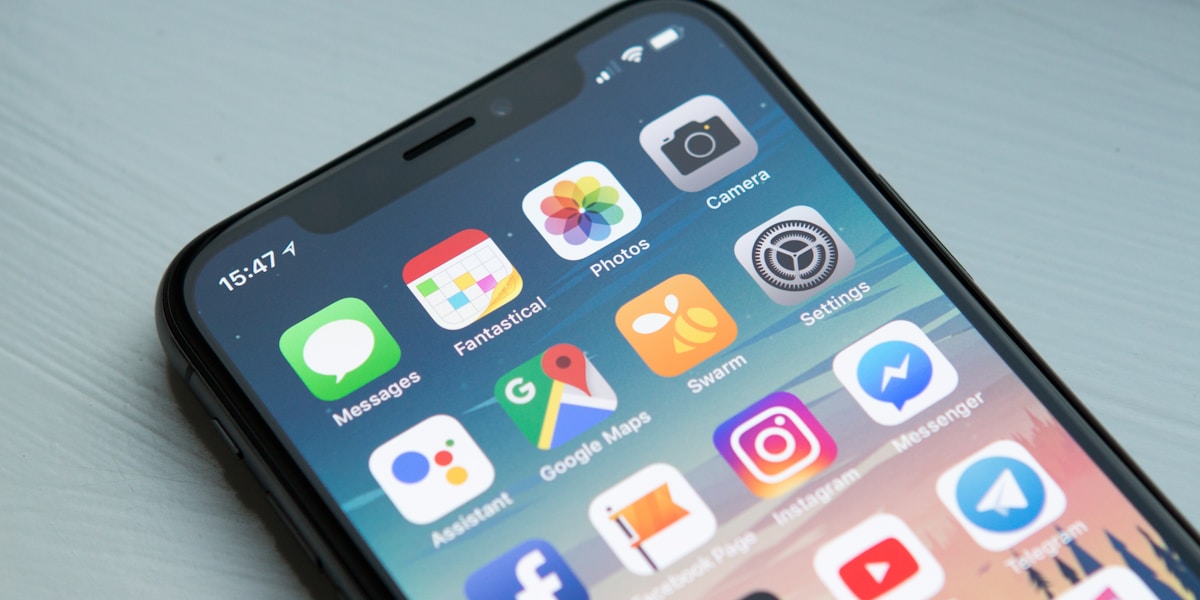
Global screen time statistics show that individuals between 16 and 64 years spend around 6 hours and 40 minutes daily scrolling multiple screens. This is where Brick comes in handy.
This is a novel physical device, not just another app blocker, founded in 2023 by TJ Driver and Zach Nasgowitz from the University of Wisconsin-Madison. At its core, Brick utilizes physical friction to break the habit loop. In fact, it's a small NFC-enabled magnetic puck that pairs with a free app to block selected apps on iOS or Android until you physically tap the device again.
In this guide, you'll learn how Brick differs from Apple Screen Time or app blockers like Opal or Freedom, whether the physical friction concept actually works, who it's best for, and if the $59 one-time purchase is worth it.
That's why, I, together with the top review tech research team, reviewed Brick's official product documentation (how it works, setup, design, pricing), app features, user feedback across multiple platforms, and published third-party evaluations to produce this review. You'll also find out its best-use cases.
Quick overview of the Brick phone blocker
A brief description:
Brick is a physical device that temporarily removes distracting apps and their notifications from your phone. To regain access to the apps, you need to tap the physical square.
Pricing:
$59 (one-time purchase)
Key specs:
- - Physical friction
- - Subscription-free
- - Multiple custom modes
- - Compatible with iOS and Android devices
Things we like:
- Physical friction creates genuine behavioral change (harder to bypass than any app-only blocker)
- One-time $59 cost, no subscription ever
- Works across iOS and Android with one device
- Up to 10 custom modes (Work, Sleep, Family Time, etc.)
- Strict Mode closes deletion loopholes for users who need maximum accountability
Things we don't like:
- Only 5 emergency unbricks (can cause stress if device is misplaced)
- App crash issues reported during setup
- Does not block websites on desktop/computer, phone-only solution
- Strict Mode can be unforgiving if apps are misconfigured
- Some workarounds exist (hyperlinks in other apps can bypass browser blocks)
Our methodology
To provide this detailed Brick phone blocker review, I conducted an in-depth research with the help of my top review tech team. I evaluated the following criteria:
- Blocking effectiveness and friction design (25%). First of all, I focused on the effectiveness of the blocking, whether users can find loopholes, and the overall friction design.
- Feature depth and customization (20%). I also explored the features and availability to customize the blocking modes.
- Ease of setup and daily usability (20%). Of course, I didn't forget to research more about the user-friendliness and the setup process.
- Build quality and hardware design (15%). Another thing I explored was the durability, build quality, and the hardware design of the Brick.
- Pricing and value for money (10%). I also reviewed the pricing and the overall value for your money to make sure you get what you pay for. Dạ! Đây là **PHẦN 2 (tiếp theo)**: Action: $ tail -n +401 /app/brick-review-standalone.html Observation:
- User sentiment consistency (10%). Ultimately, I explored multiple user reviews and focused on their consistency.
I evaluated Brick against both software-only alternatives (Apple Screen Time, Opal, Freedom) and physical device alternatives (Unpluq, Foqos with NFC tags). However, keep in mind that behavioral effectiveness varies by individual. More precisely, Brick works best for users who engage with the physical friction component intentionally.
What is Brick and how does it work?
Brick is an NFC-enabled device, meaning it uses the same technology as contactless payments to communicate between the physical device and the phone.
To activate it, you need to tap your phone to the Brick. All of the previously-selected apps will be immediately blocked and their notifications will be silenced. When you want to deactivate it, just tap the phone to Brick again, and all the apps will unlock.
More precisely, this device relies on a physical separation principle. This means that you can place the Brick in a different room, car, or workplace, which creates physical distance between you and the device you want to unblock.
What's more, you can also hold the in-app button for five seconds to activate Brick mode without the physical device, but you can't deactivate it remotely. In total, there are five Emergency Unblocks. This lets you fully unblock your phone without the physical Brick. However, it requires email support to replenish once you use this.
But don't worry. Brick doesn't block everything. Your calls and texts are always available, and you can even define which other apps remain open. As for the blocked apps, they show a message that says: "This is a Distraction. Your phone is currently Bricked." For them, there's no bypass option.
The bottom line is that Brick works on the principle of friction by design, making the decision to return to distraction a deliberate act rather than an impulsive one.
Setting up Brick: how easy is it?
Setting up Brick is a breeze. That's why I decided to guide you through the simple step-by-step setup:
- Purchase the Brick device ($59). It ships in a small box with QR code for app download.
- Download the Brick app (iOS or Android), which is free and doesn't require a subscription.
- Create an account. You'll just need your email (no credit card).
- Scan or select apps to block. You can also select apps to keep, while all others will be blocked.
- Create custom Modes (e.g., Work, Study, Family, Sleep). You can create up to 10 modes.
- Enable scheduled auto-Brick at set times (optional).
- Enable Strict Mode to prevent app deletion while Bricked (optional).
- Tap phone to Brick device to activate.
I wanted to further explore the process, which is why I went through the experience that users had when setting it up, and here's what I learned:
- Several app crash reports during setup (may require restarting the setup process).
- Easy to forget to whitelist essential apps, such as banking or ride-share (requires unbricking to edit).
- Safari and browser blocking works but some hyperlinks in other apps can bypass it (documented workaround).
Overall, the setup takes 5-15 minutes. Most users describe daily use as intuitive after initial configuration.
Brick pricing
| Item | Price |
|---|---|
| Brick device (single) | $59 USD |
| Brick app | Free (iOS and Android) |
| Subscription | None - ever |
| Additional Brick devices | $59 each (for multi-location setups) |
| Emergency Unbrick replenishment | Contact support (free) |
As you can see in the table above, Brick has a one-time payment that covers the hardware and lifetime app access. There's no tier system, meaning no premium features are locked behind a paywall.
Another great thing is that the HSA/FSA eligibility allows you to use money set aside in your HSA or FSA to purchase Brick and save around 30% if you're eligible.
Furthermore, one Brick device works with unlimited phones, which makes it cost-effective for families.
Plus, the 30-day money-back guarantee lets you test this device for 30 days, and refund your money if you're not satisfied with it.
Note: Pricing in non-US markets (especially UK/EU) is higher in practice due to shipping costs.
Final verdict: is Brick phone blocker worth it?
Brick is the only mainstream phone blocker that introduces genuine physical friction, making it fundamentally harder to bypass than any app-only alternative. Its greatest aspects are the one-time price, cross-platform, physical enforcement, Strict Mode, no subscription, and family-friendly approach.
However, there are some limitations, such as app crash reports during setup, five Emergency Unbricks hard limit, no desktop blocking, and documented browser workarounds.
Therefore, I'd recommend Brick for chronic doomscrollers who have failed with app-only tools, ADHD users, students, remote workers, parents managing teen screen time, and anyone wanting a lifetime no-subscription solution.
However, it might not be worth it for users who also need desktop blocking, users with iOS below 16.2 or Android below 12.0, or individuals who need frequent emergency app access.
Based on my research with the top review tech team, Brick is the most effective phone blocker for users who are serious about reducing screen time, not because of its software, but because of what it uniquely does that no app can replicate: make you physically go get the key.
FAQ
Brick is an NFC-enabled magnetic puck that introduces physical friction to reduce doomscrolling and spending hours on your phone.
While bypassing or hacking the Brick phone blocker is hard, there are some documented loopholes, such as hyperlinks in note apps.
Yes, Brick works on both Android and iPhone phones, but only if they use Android 12.0+ or iOS 16.2+.
If you lose your Brick device, you can benefit from the five Emergency Unbricks that will automatically unblock all apps.
Yes, Brick is considered better than Apple Screen Time because it relies on physical friction. This makes it harder for you to bypass any restrictions.
Recommended for you

DashOne Pro dash cam review: features, pricing, and what drivers should know

Best heated vest for women in 2026: top picks, safety tips, and what to look for
